Log in to Yale Course Search
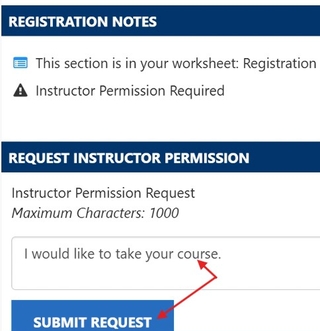
If the course requires instructor permission, a Request Instructor Permission section opens to the left of the Registration worksheet when the course is added to the worksheet.
- Write a brief note explaining why you want to take the course.
- Click Submit Request.

- The worksheet will show an hourglass icon indicating that permission is pending.

- Check back periodically to see if the instructor has responded. If so, you will see a note indicating that there have been changes to your registration worksheet.
- If approved, a green checkmark with the word Approved appears just above the instructor’s name to indicate approval from the instructor – this does not mean the registration is complete.
- Registration is not automatically complete upon instructor approval
- The changes must be confirmed to complete registration and actively confirm a seat in the course; to do this click “Confirm Changes”.

- Once the black checkmark appears in the lower left section of the section information, course registration is complete.